On your phone
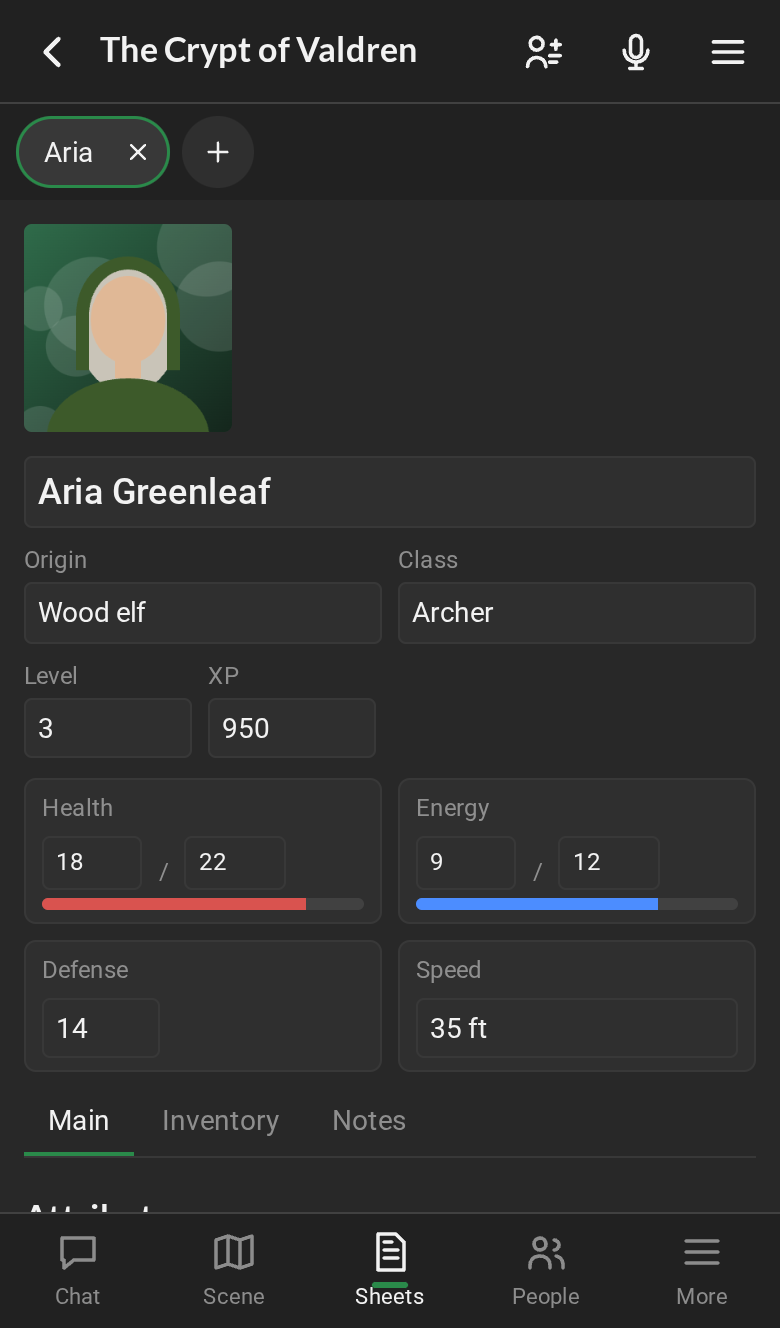
RPG Desk works in your phone’s browser, with nothing to install. The screen adapts to your finger: the navigation moves to the bottom, the room shows one thing at a time, in tabs, and menus come up from the bottom.
On a tablet, the room is the same as on a computer, with the spaces side by side, and touch works as described in Gestures.
Installing it as an app
Section titled “Installing it as an app”RPG Desk can sit on your home screen, with its own icon, and open full screen, like an app:
- iPhone (Safari): the Share button → Add to Home Screen;
- Android (Chrome): the ⋮ menu → Install app (or Add to Home screen).
Outside the room
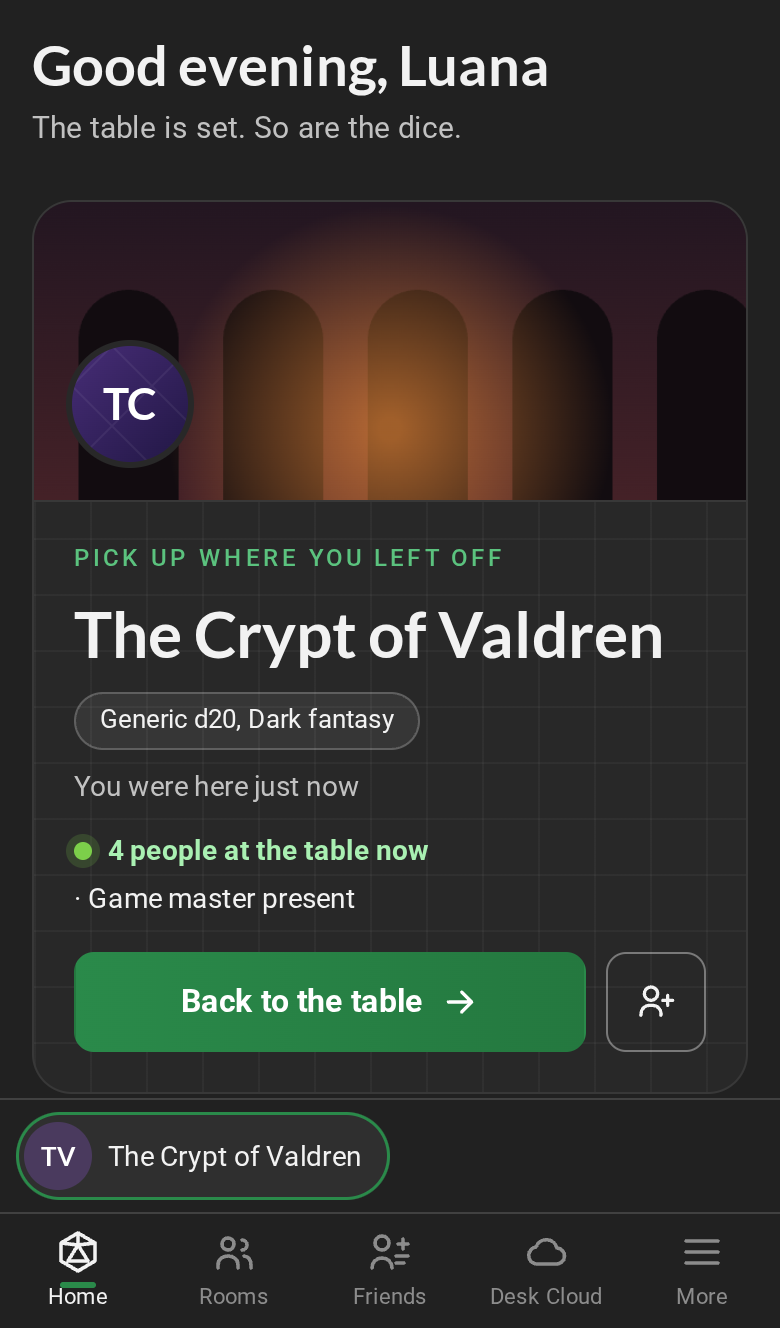
Section titled “Outside the room”The bar on the left becomes a bar at the bottom, with Home, Rooms, Friends, Desk Cloud and More (where Settings and Sign out are). Friends opens the friends panel full screen; inside a room, it opens from the friends button at the top (see Profile, friends and conversations).
Your open rooms show up in a strip right above the bar:
- tap a room to go back to it;
- hold it for Leave room.
In the room
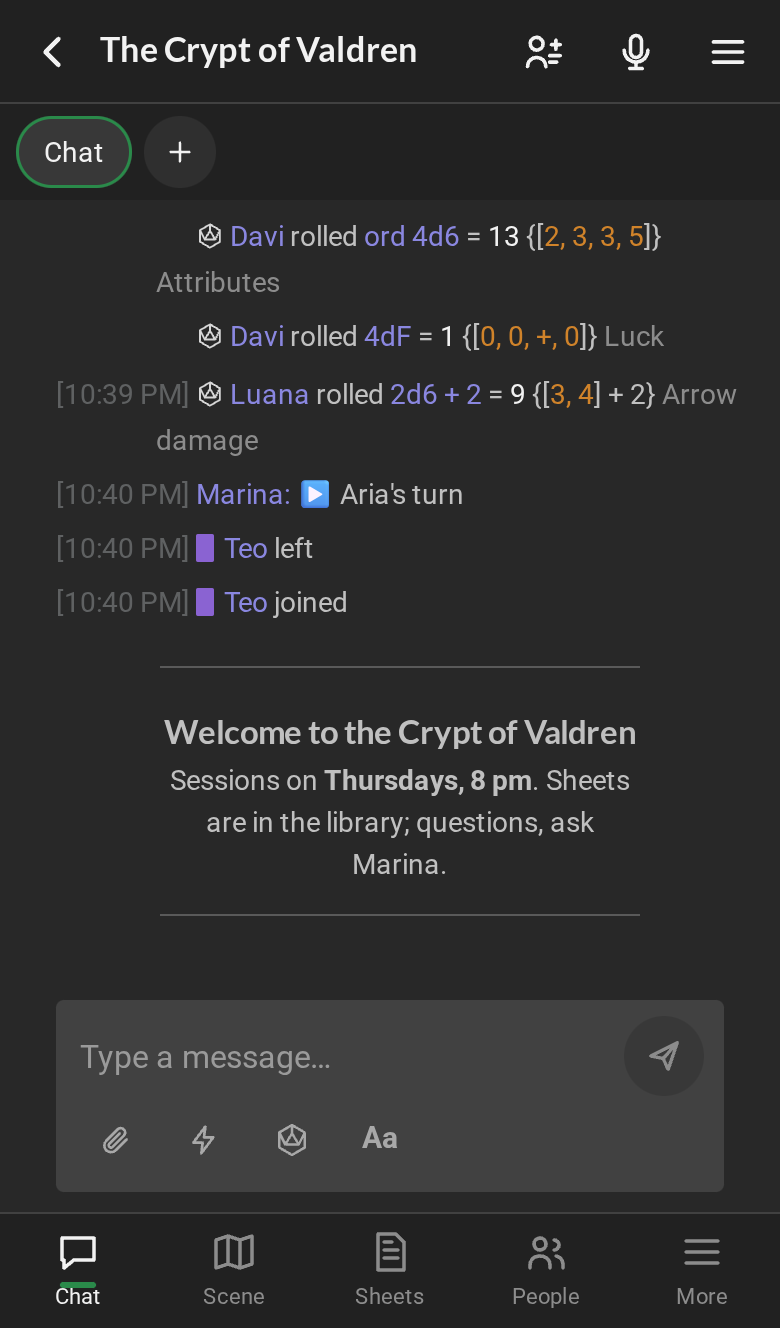
Section titled “In the room”At the top:
- ‹, which goes back to Home without leaving the room. It stays open, in the strip;
- the room name;
- the microphone, which opens Voice and video;
- ☰, the room menu: invite friends, the settings and leave.
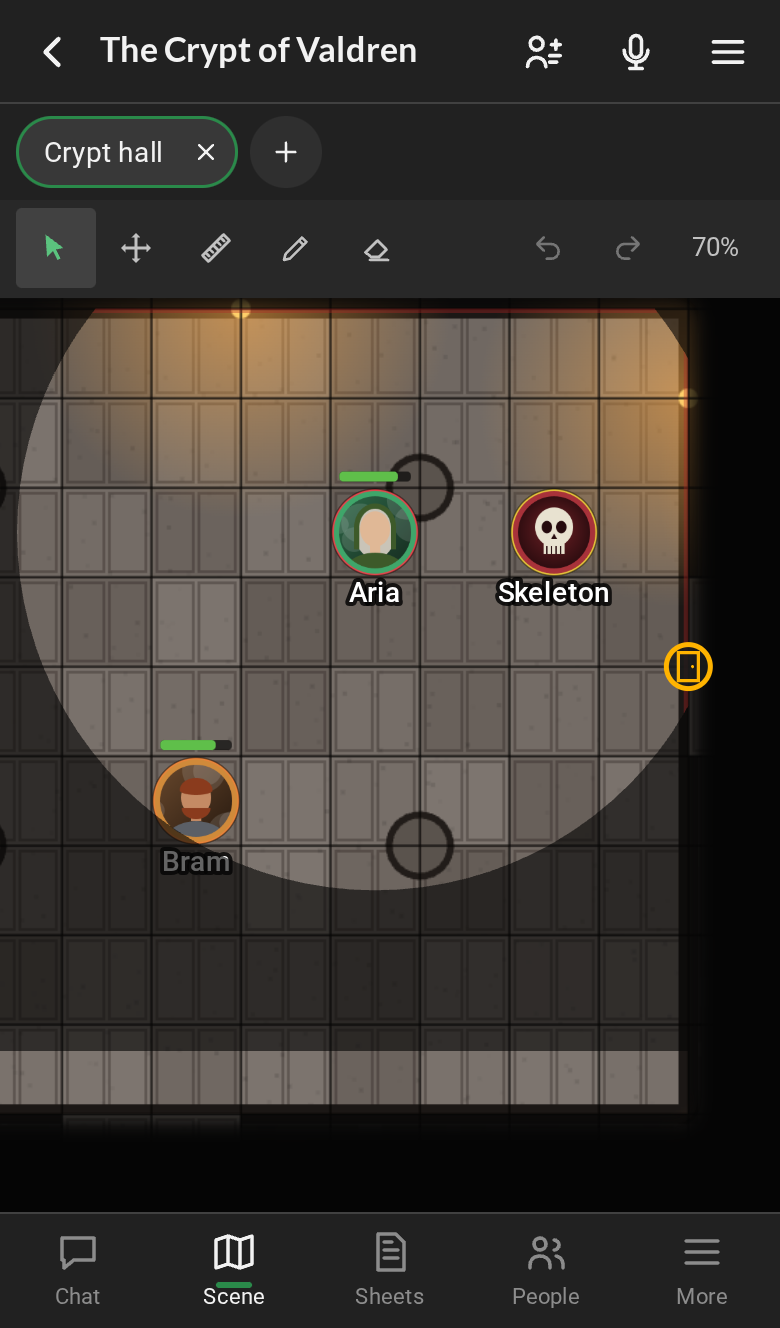
At the bottom, five tabs:
- Chat: the room chat and the private and group conversations, as chips at the top. The + starts a conversation. A new message, while you are on another tab, shows up as a number on the tab.
- Scene: the open scenes. With none open, the list of scenes, to tap.
- Sheets: your main character opens by itself the first time. The + opens other sheets.
- People: the participants in the room.
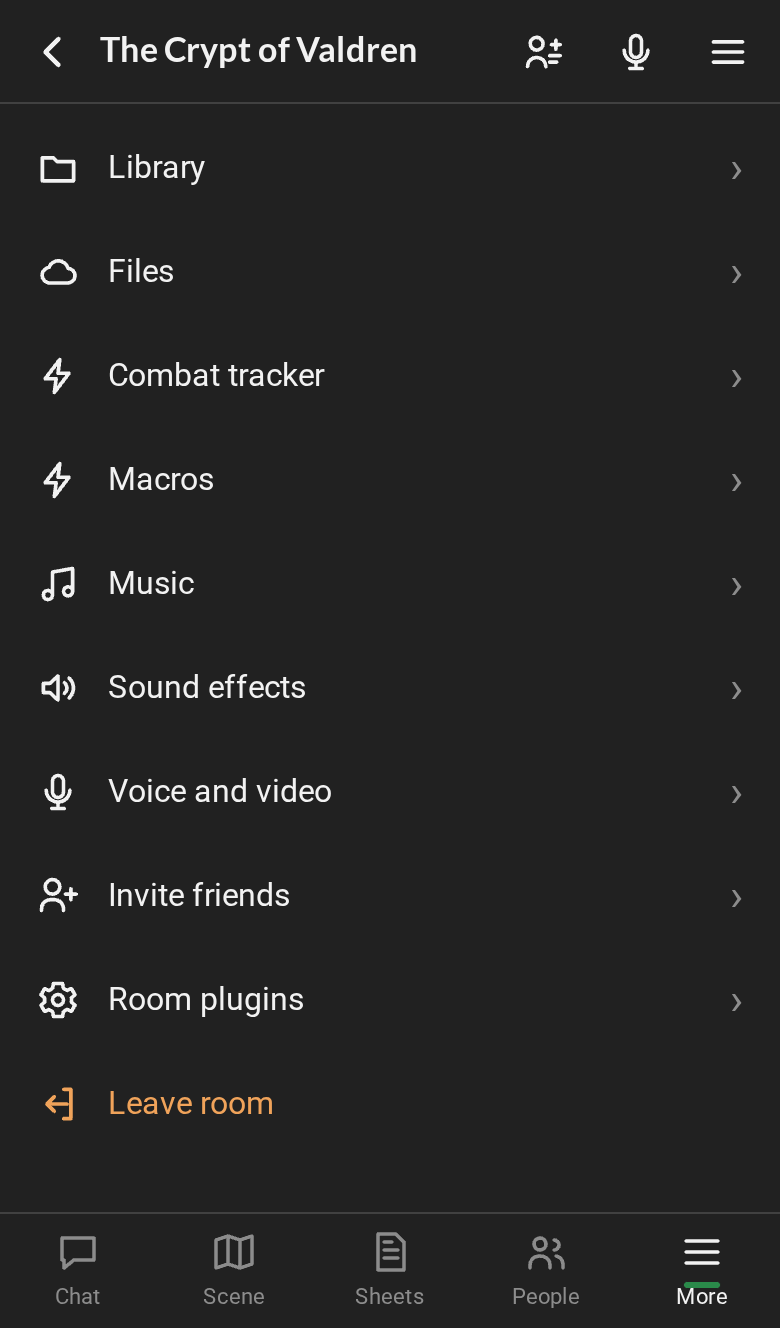
- More: the library, the room tables, music, sound effects, voice and video, the room settings and Leave room.
In the chat, the Send button sits next to the box. In the row below it:
- the paper clip, to send a file;
- the macros;
- the die, which opens the dice row: one tap rolls;
- Aa, which opens the formatting and Speak as.
Opening a sheet or a scene from the library (or from a link) takes you to the right tab.
Gestures
Section titled “Gestures”| On a computer | On a phone and a tablet |
|---|---|
| Double-click a sheet or scene in the library | Tap |
| Right-click (menus) | Hold your finger |
| Mouse wheel (zoom in the scene) | Pinch: two fingers moving apart or together |
| Drag the map | Drag with one finger, or with two |
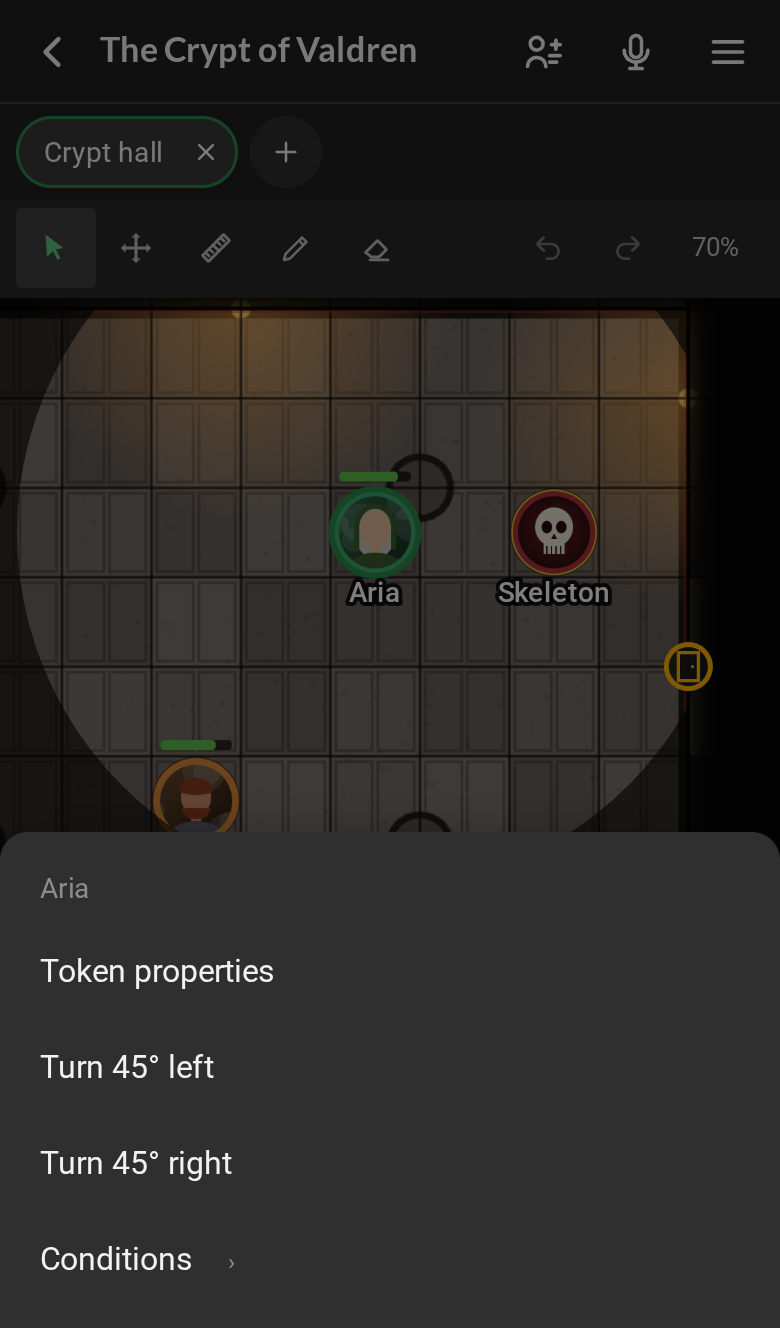
- Holding your token opens its menu: Token properties, turning.
- Holding the empty map (or someone else’s token) pings.
- The zoom percentage, in the scene’s toolbar, fits the whole map.
- Menus come up from the bottom. Pick an option, or tap outside to close.
- The ⋯ buttons, on the participant card and the room card, open the menu too.
What stays on the computer
Section titled “What stays on the computer”- Opening tabs and spaces in their own windows, arranging the screen and maximizing a space.
- The GM’s heavy tools (walls, fog, aligning the map): they work on a phone, in a row that scrolls sideways, but they are more comfortable on a computer or a tablet.