
Room settings
The settings open from the room menu (right-click the room’s icon, in the bar on the left) → Room settings. They open in a panel next to the Chats, with five pages in the bar on the left: Profile, Game rules, Plugins, Permissions and System. They look like the program’s Settings: each page has cards, and the Applies to the whole room badge is a reminder that the change is for everyone.
On Profile and Game rules, changing something brings up the You have changes that are not saved yet bar at the bottom, with Undo and Save. Everything else (the password, the chat history, the lists of people and the plugins) takes effect right away.
Only the owner and the assistant game masters change the settings. Changes to the name, status, welcome message, traits and password show up in the chat for everyone.
Players and spectators also open Room settings, but they only see the Plugins page: the room’s plugins and tables, and the sheet development mode.
Profile
Section titled “Profile”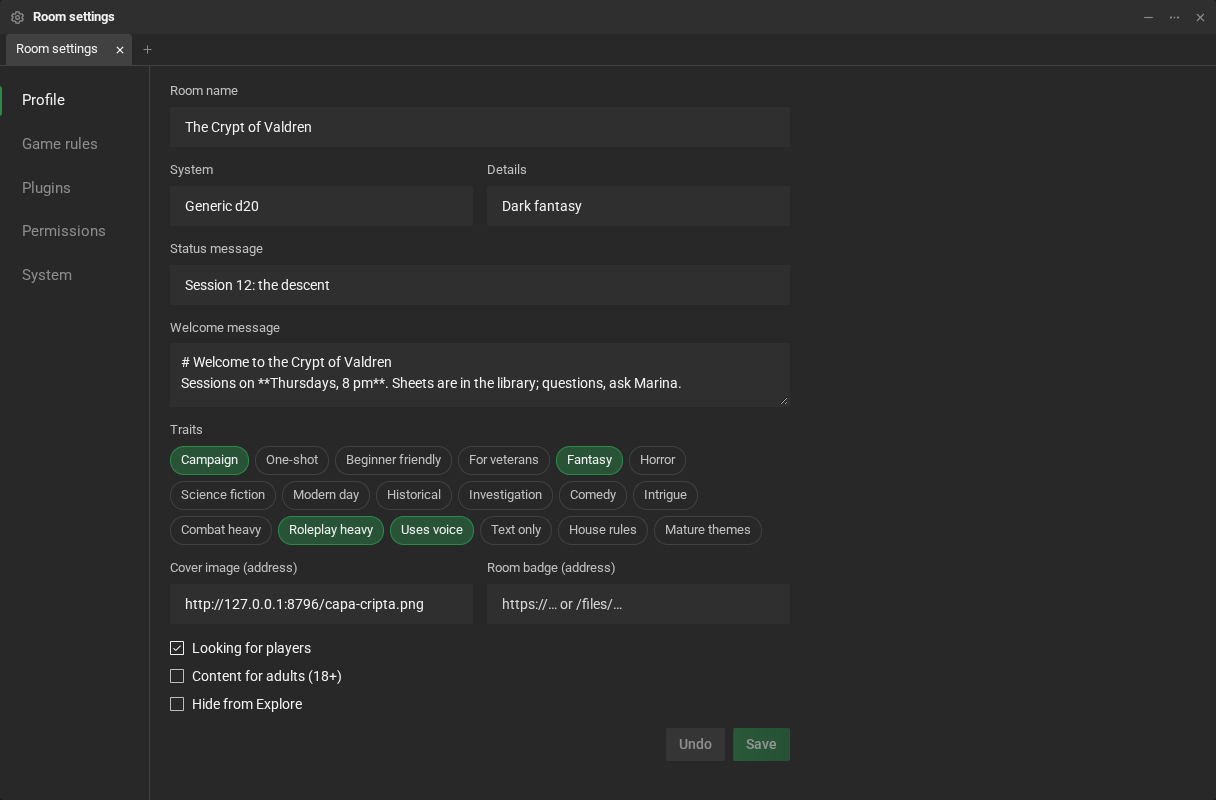
- Room name, System and Details.
- Status message: a short line that shows on the room’s card, in Explore (“Session 12 this Saturday”).
- Welcome message: shows up in the chat for whoever joins. It accepts chat formatting.
- Traits: up to 12, for the search in Explore.
- Cover image (address) and Room badge (address): the address of an image (
https://…). The cover shows at the top of the card; the badge, in the circle over it. Without an image, RPG Desk draws a cover and shows the room’s initials. - In the In Explore card, three on/off switches:
- Looking for players: the Looking for players badge on the card;
- Content for adults (18+): the 18+ badge. The room disappears from Explore for whoever does not want to see adult rooms;
- Hide from Explore: the room can only be found through its link.
Game rules
Section titled “Game rules”The bars and lines on the players’ cards, and where the dice numbers come from (random.org or the program). See Game rules.
Plugins
Section titled “Plugins”The room’s sheet and table plugins: install, update and remove them, and enable the room tables (the ones that come with RPG Desk, like the Combat tracker and Macros, and the plugins’ ones). See Room plugins and tables.
Permissions
Section titled “Permissions”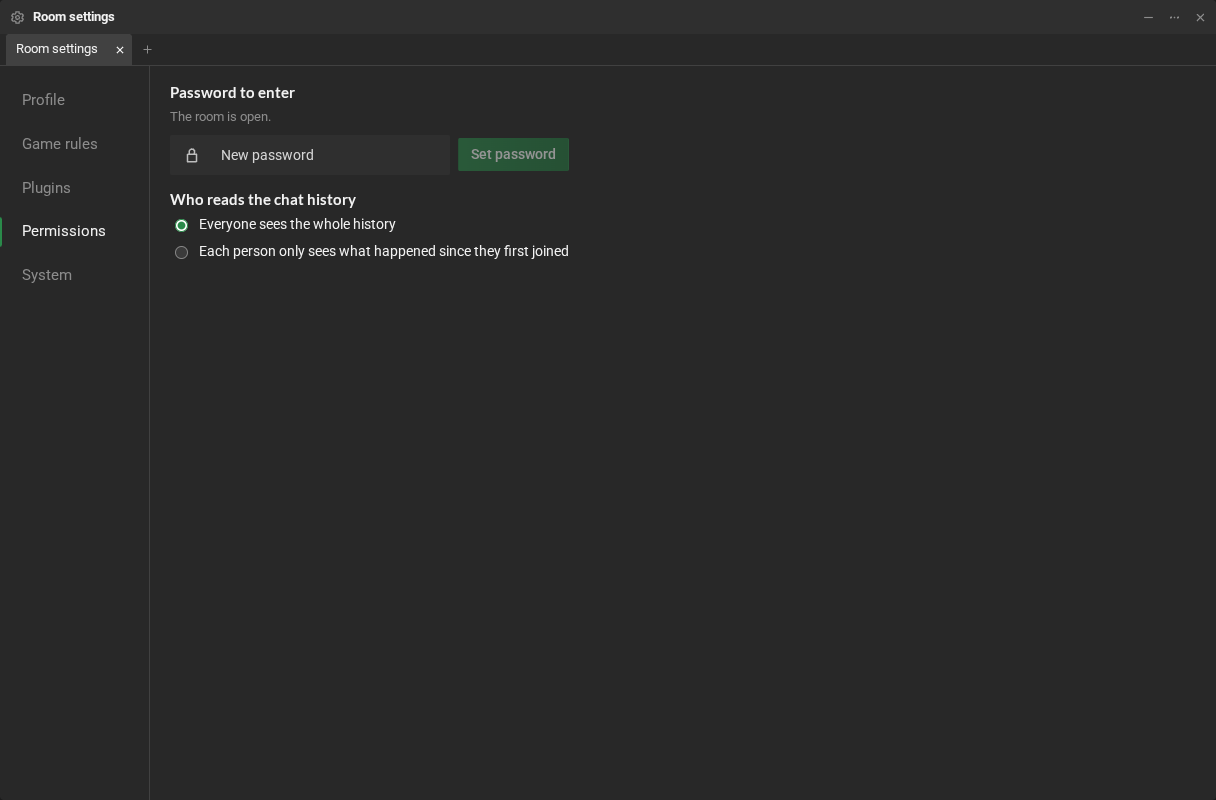
- Password to enter: type the New password and click Set password; Remove password opens the room again. The owner and the assistant game masters enter without the password.
- Who reads the chat history: Everything (everyone sees the whole history) or Since joining (each person only sees what happened since they first joined).
System
Section titled “System”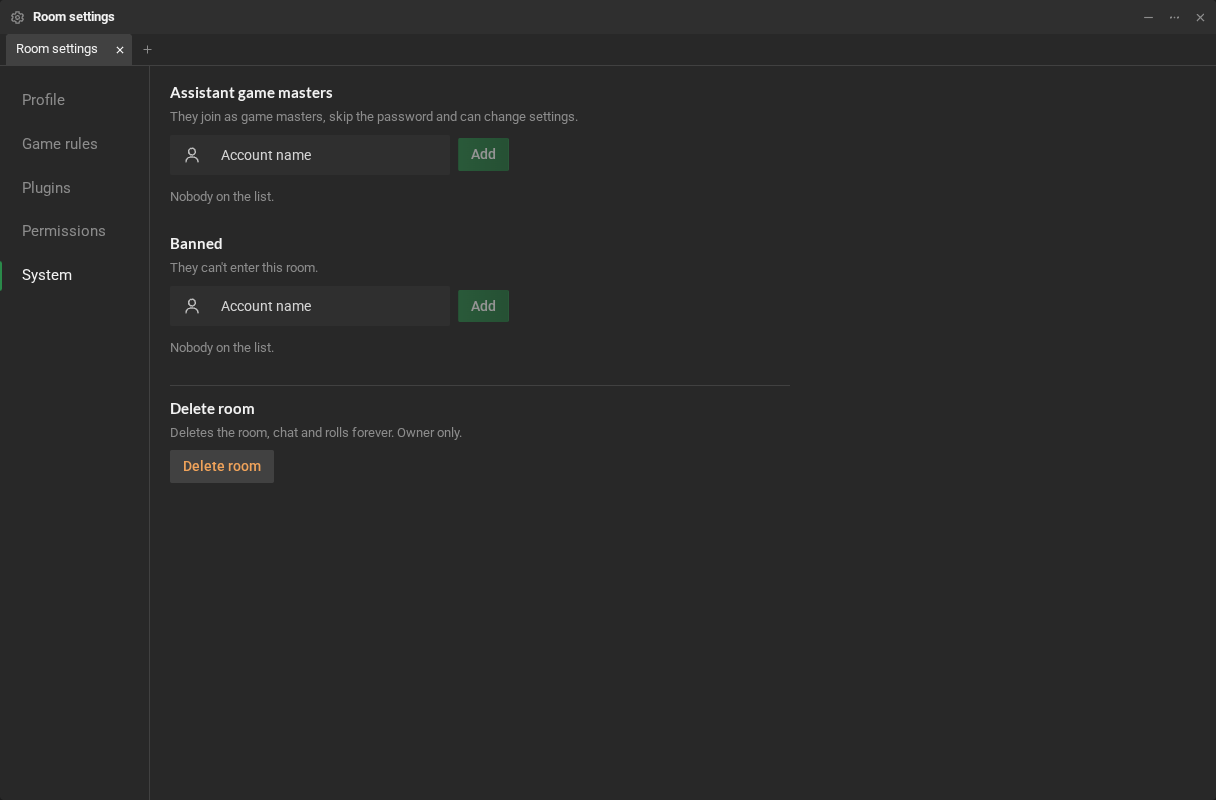
- Assistant game masters: type the Account name and click Add. They join as game masters, skip the password and can change the settings. Only the owner changes this list.
- Banned: who cannot enter the room. Banning someone from their menu also puts the account here; Remove takes it off the list.
- Delete room, in the Danger zone: deletes the room, its chat and its rolls forever. Only the owner can, and RPG Desk asks you to type the room’s name first.