Building the scene
A scene is a map with a grid, where the tokens live. Each scene is a library item: the room can have as many as you want (the tavern, the road, the crypt) and you open the one in play.
Create the scene
Section titled “Create the scene”- In the library, New item → New scene, and give it a name.
- Double-click the scene to open it in a tab, next to the other scenes (the first one goes to the empty space). Double-click its tab (or More space actions (⋯) → Maximize) to have it fill the screen.
- Click Map and choose the image (see below).
- When it is ready, right-click the scene in the library and choose Make visible to everyone. Until then, only game masters see it.
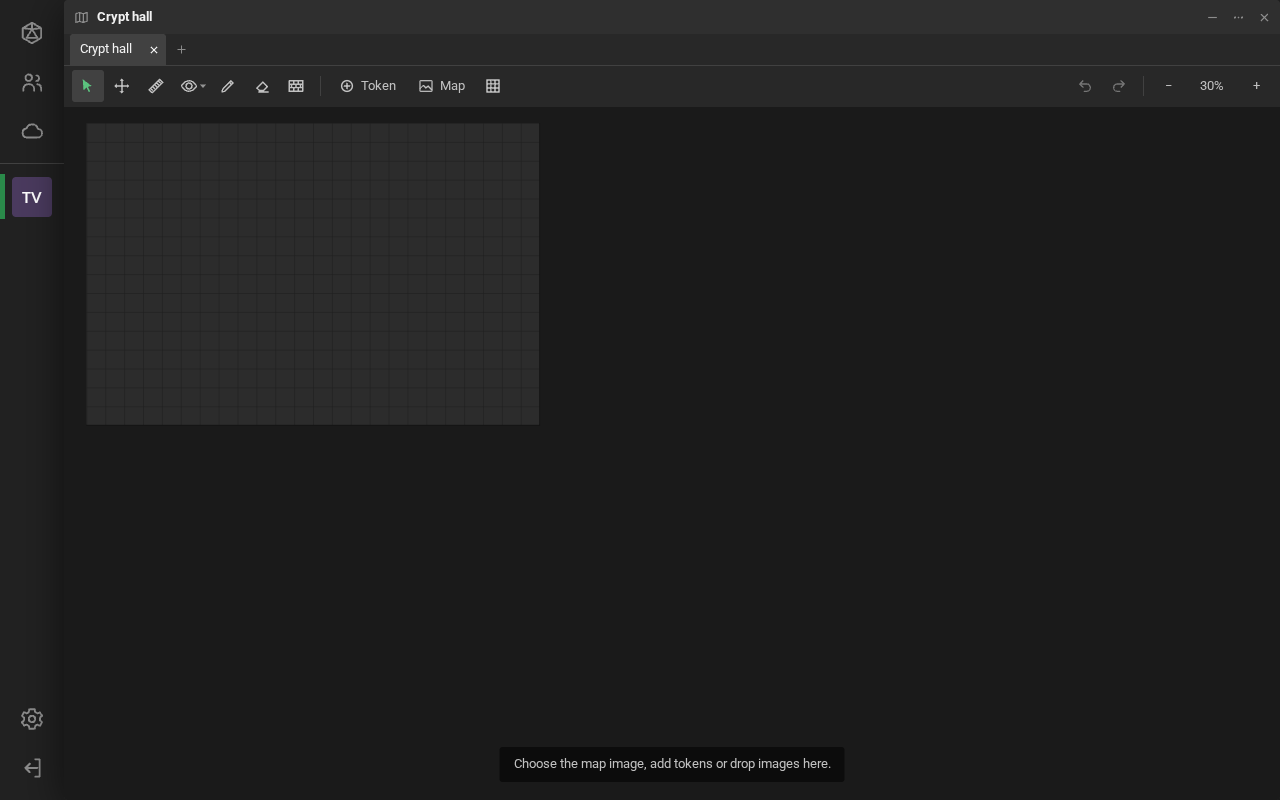
A new scene opens with just the grid, and the hint “Choose the map image, add tokens or drop images here.”:
The map image
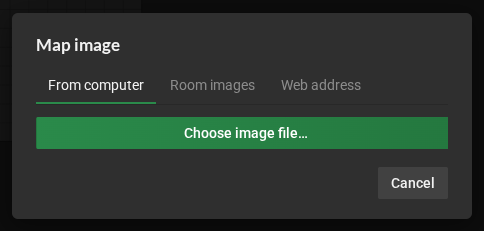
Section titled “The map image”The Map button opens Map image, with three tabs:
- From computer: uploads an image file (it goes to your Desk Cloud);
- Room images: an image you already sent to this room;
- Web address: the address (
https://…) of an image on the internet.
Maps already in your Desk Cloud become the background too: drag one from the Files tab onto the scene, or use Use as the open scene background (see Use in a room).
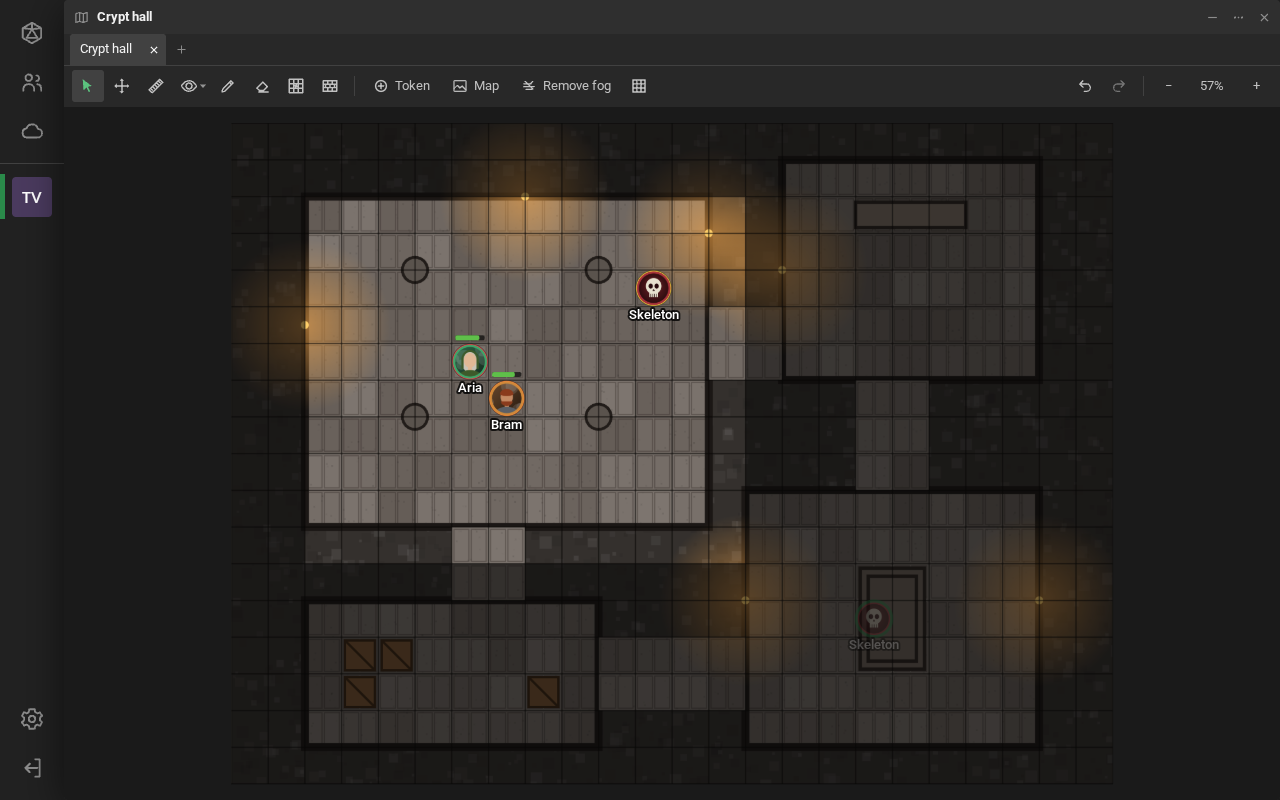
If the image has a grid drawn on it, RPG Desk finds it and fits the scene’s grid over it, and tells you how many cells the map ended up with. Without a drawn grid, the image is fitted to whole cells.

Line up the grid
Section titled “Line up the grid”If the scene’s grid did not land exactly on the drawing’s lines, use Align the grid with the map image (the grid icon, in the toolbar):
- Width and Height, with the plus and minus buttons, stretch the image; the arrows move it. Rotation turns the image in steps of 0.05°. With Shift, the step is 10 times bigger. The keyboard arrows also move the image.
- Mark and synchronize: drag over a few cells drawn on the map (four, spread out, work best) and click Synchronize.
- Detect the image grid looks for the grid again.
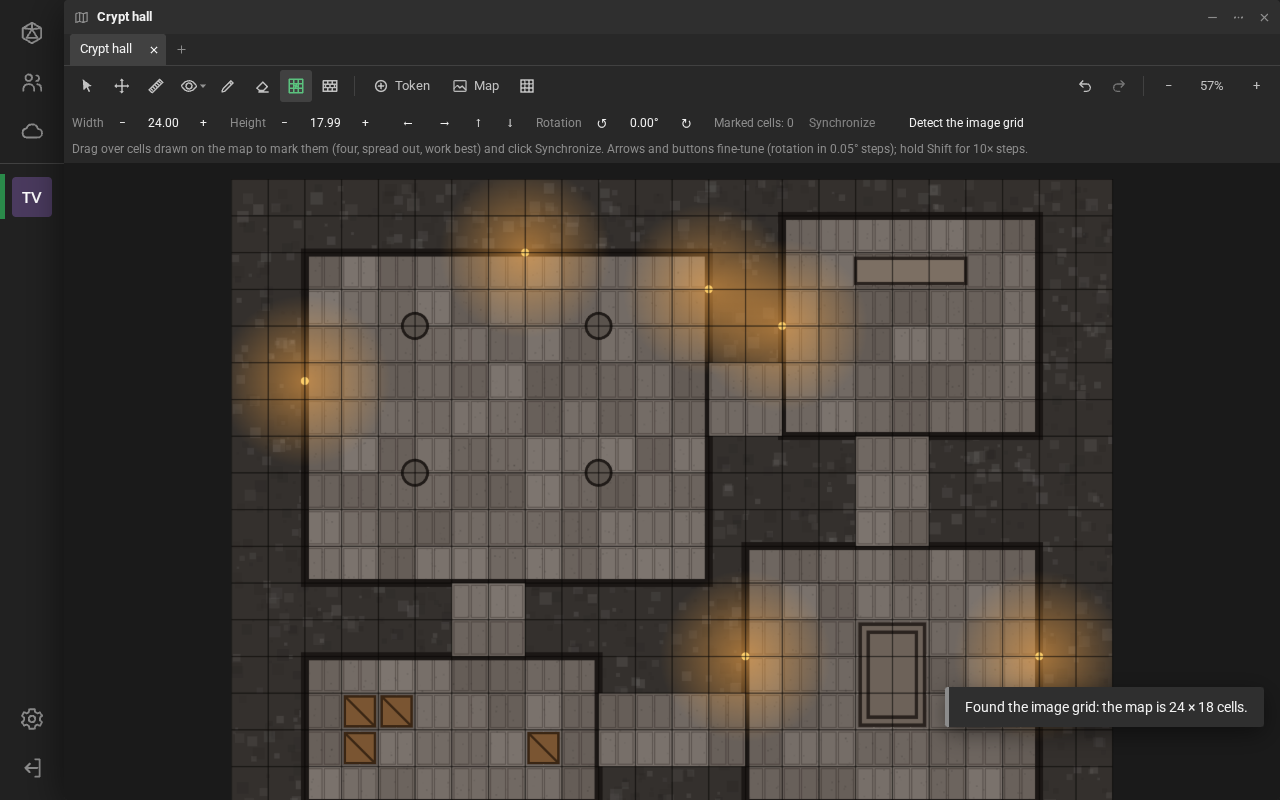
Tokens, fog and drawings stay put when you align the image. Everything can be undone with Ctrl + Z.
Scene settings
Section titled “Scene settings”The last button on the toolbar, Scene settings:
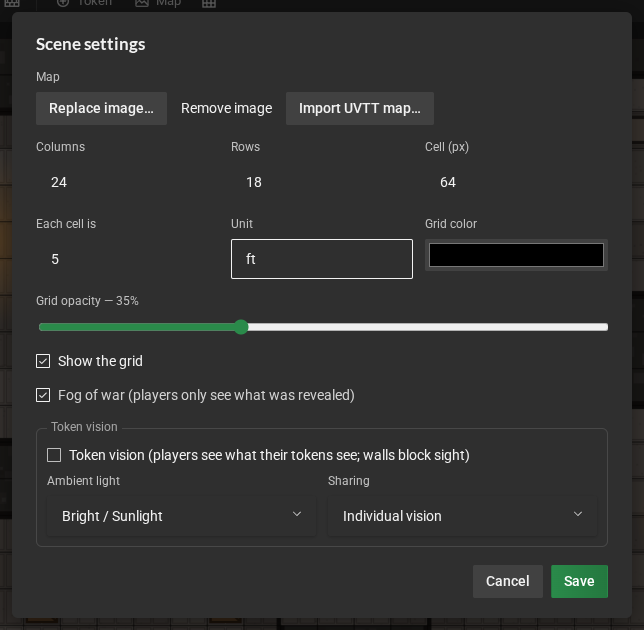
- Map: Replace image…, Remove image and Import UVTT map… (see Fog, walls and vision).
- Columns, Rows and Cell (px): the size of the board and of a cell on the screen.
- Each cell is and Unit: the scale of the ruler and of movement. The default is 1.5 m; for
5 feet, type
5andft. - Grid color, Grid opacity and Show the grid.
- Fog of war and Token vision: see Fog, walls and vision.
Tokens
Section titled “Tokens”Three ways to place a token:
- Drag images from your computer onto the scene: each image becomes a token, named after the file.
- Drag someone’s picture, from the Participants list, onto the scene: the token already carries their name.
- The Token button places a token at the center of the view.
Double-click the token to open the Token properties:
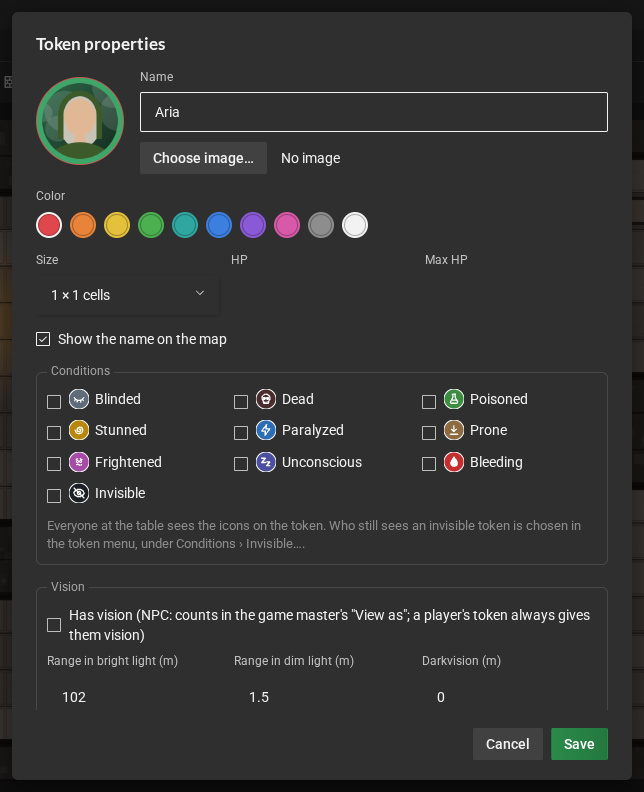
- Name, Choose image… (or No image: the token shows its initials in the chosen Color) and the Size (from half a cell to 6 × 6);
- HP and Max HP: the little green bar above the token;
- Show the name on the map;
- Vision: what the token sees and the light it gives (see Fog, walls and vision);
- Aura: an area painted around the token (see Auras);
- Layer: Map (below everything), for furniture and objects, Tokens, or GM only;
- Conditions: Blinded, Dead, Poisoned and the others (see Conditions);
- Hidden from players: the token does not even reach the players (you see it faded);
- Who can move it: check the players who control the token. Players move their tokens; the game master moves all of them.
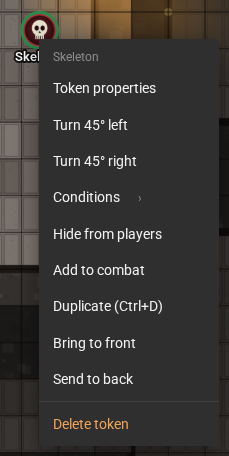
Right-clicking the token offers the rest:
| Shortcut | What it does |
|---|---|
| Ctrl + C and Ctrl + V | copy the selected token and paste it where the mouse is (even in another scene) |
| Ctrl + D | duplicates the token next to it |
| Delete | deletes the selected token |
| Arrows | move the selected token one cell |
| Ctrl + Z and Ctrl + Y | undo and redo what you did in the scene (up to 50 steps) |
The copy takes everything the token has: its properties, facing, conditions, Invisible, who controls it, vision, light and aura. It only leaves out what the token has already explored of the map.
All the shortcuts are in Keyboard shortcuts.
You can erase everyone’s drawings: Draw → Clear… has Clear players’ drawings and Clear all drawings.
Conditions
Section titled “Conditions”Conditions show the character’s state on the map: each one is an icon on the token’s edge. Turn them on and off under Conditions, in the token’s right-click menu, or in its properties.
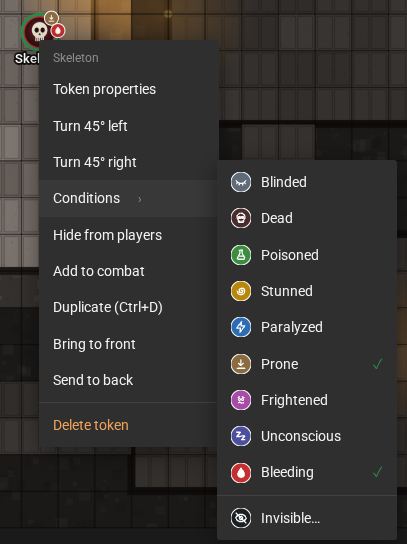
- A token can have several conditions at once. Up to 4 icons show on the edge; past that, 3 show plus a +N with the rest. Each icon’s tooltip gives the condition’s name.
- You turn them on and off on any token. Players only on the tokens they control, and you can remove a condition a player set.
- Everyone at the table sees the conditions of the tokens they can see.
- For now, conditions are only visual: they don’t change movement, vision or fog. The exception is Invisible, which has its own rule (below).
Invisible token
Section titled “Invisible token”Invisible…, under Conditions in the token’s right-click menu, keeps the token in play but only in sight of the people you choose. You can also turn it on and off in the token’s properties; choosing who still sees it is done in the menu. It is for invisibility spells and powers; to take the token off the map, use Hide from players.
- Check Make the token invisible and, under Who still sees it, the participants who still see it. You and whoever controls the token always see it.
- Anyone not checked sees nothing of the token: image, name and bar. The server doesn’t even send them the token.
- Whoever sees the token sees it faded, with a crossed-out eye on its edge, before the other conditions. While the token is invisible, the menu item reads Invisible (on)…; unchecking the box removes the condition.
- Players can make their own token invisible and choose who sees it too. You are told about every change, as with a locked door, and you can make any token visible again.
- Whoever joins the room later starts without seeing the token. Whoever was allowed stays allowed after leaving and coming back.
- Hide from players wins: hidden, no one but the game masters sees the token, not even those allowed. Fog and token vision still apply to those allowed.
- In View as, you also see the invisible tokens the way the chosen player does.
- In combat: a token that came in through Add to combat leaves the tracker for whoever doesn’t see it, and its turn does not go to the chat (see Link to the scene token).
An aura is an area painted around the token: a paladin’s aura, a spell’s reach, a breath weapon’s cone. It moves and turns with the token, and whoever sees the token sees the aura.
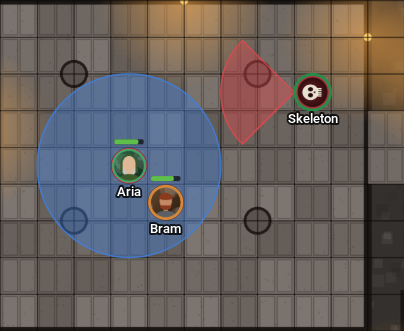
In the Token properties, check Has an aura:
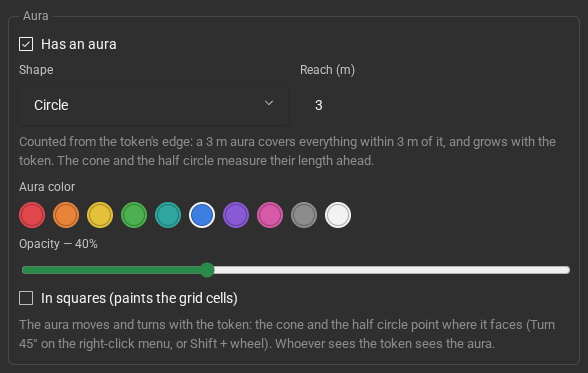
- Shape: Circle, Cone, Half circle, Rectangle or Image;
- Reach: how far the aura goes, counted from the token’s edge, in the scene’s unit. A 3 m aura covers everything within 3 m of the token, and on a bigger token it grows with it. For the cone and the half circle, it is the length ahead;
- Opening: the cone’s angle (90° by default; the D&D 5e cone is about 53°);
- Width and Height: the size of the rectangle and of the image, centered on the token;
- Choose image…: from your computer, one of the room’s images or a web address;
- Aura color and Opacity;
- In squares: instead of the smooth shape, it paints the grid cells that fall inside it.
The cone and the half circle point where the token faces: turn the token from the right-click menu (Turn 45°) or with Shift + wheel. With the token turned 45°, the cone starts at its corner, like the books’ diagonal cone.
Players can also give an aura to the token they control. Copying, pasting or duplicating the token takes the aura along, and Ctrl + Z undoes. A hidden token’s aura shows only to you, faded, like the token.