Profile, friends and conversations
Your profile
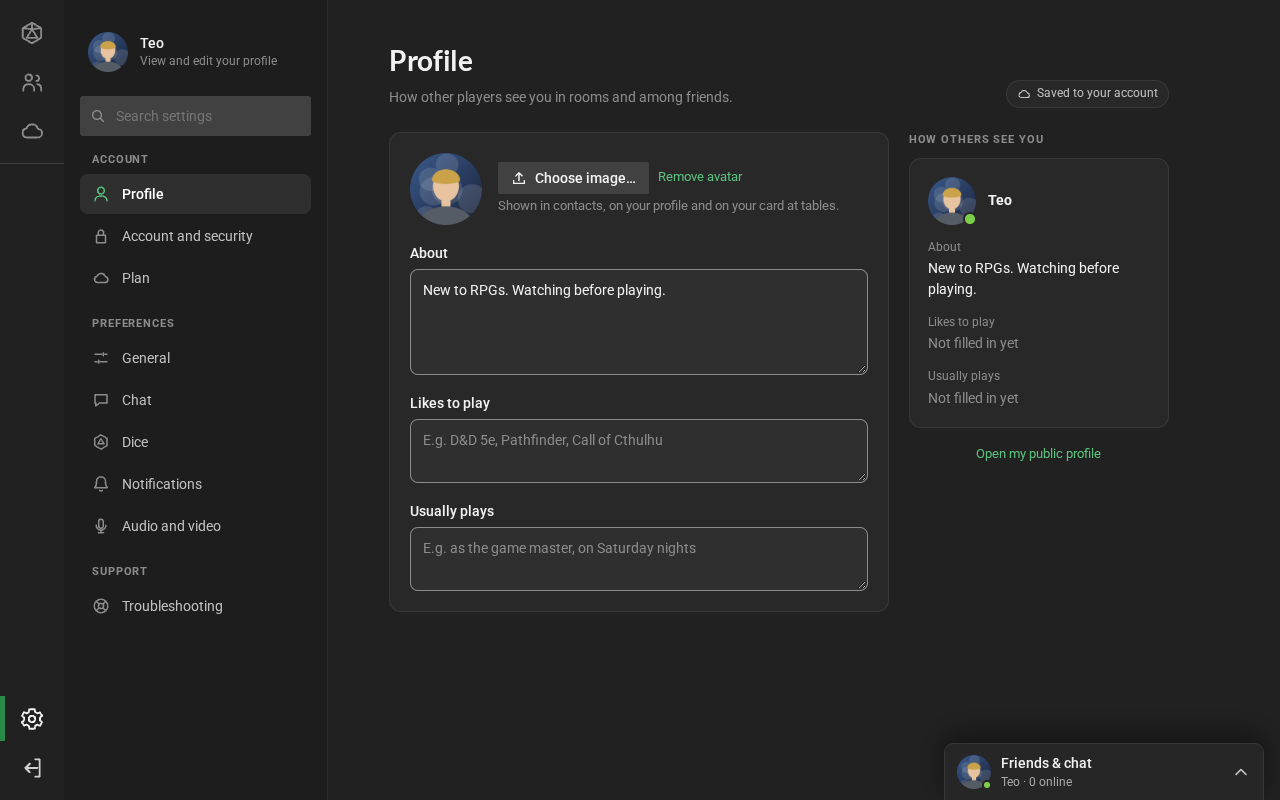
Section titled “Your profile”In Settings → Profile you choose your picture (Avatar) and write what other people see: About, Likes to play and Usually plays. Your picture shows up in the friends list, on your profile and on your card in rooms.
In a room, you can use a different picture just there, your character’s: see Participants.
Other people’s profiles
Section titled “Other people’s profiles”Right-click someone’s name (in a room or in the friends list) and choose View profile.
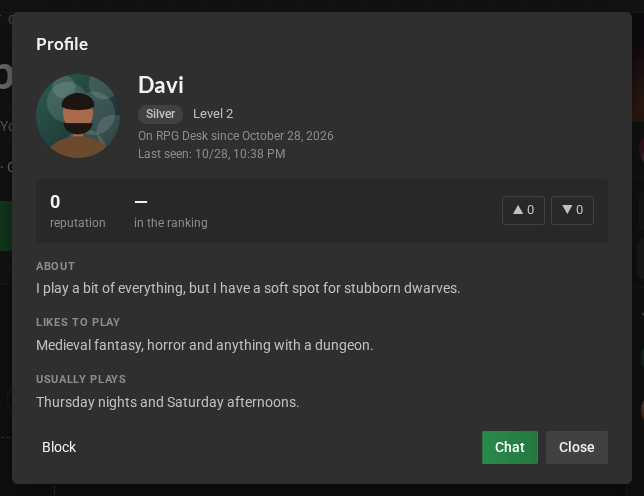
- Rank and level: the rank (Silver, Gold, Platinum or Ruby) goes up with reputation; the level goes up with activity (rooms created, friends and messages).
- Reputation: approvals minus disapprovals. Use the arrows to approve or disapprove the person; clicking again undoes it.
- Chat, Add friend and Block are at the bottom of the profile.
Friends & chat
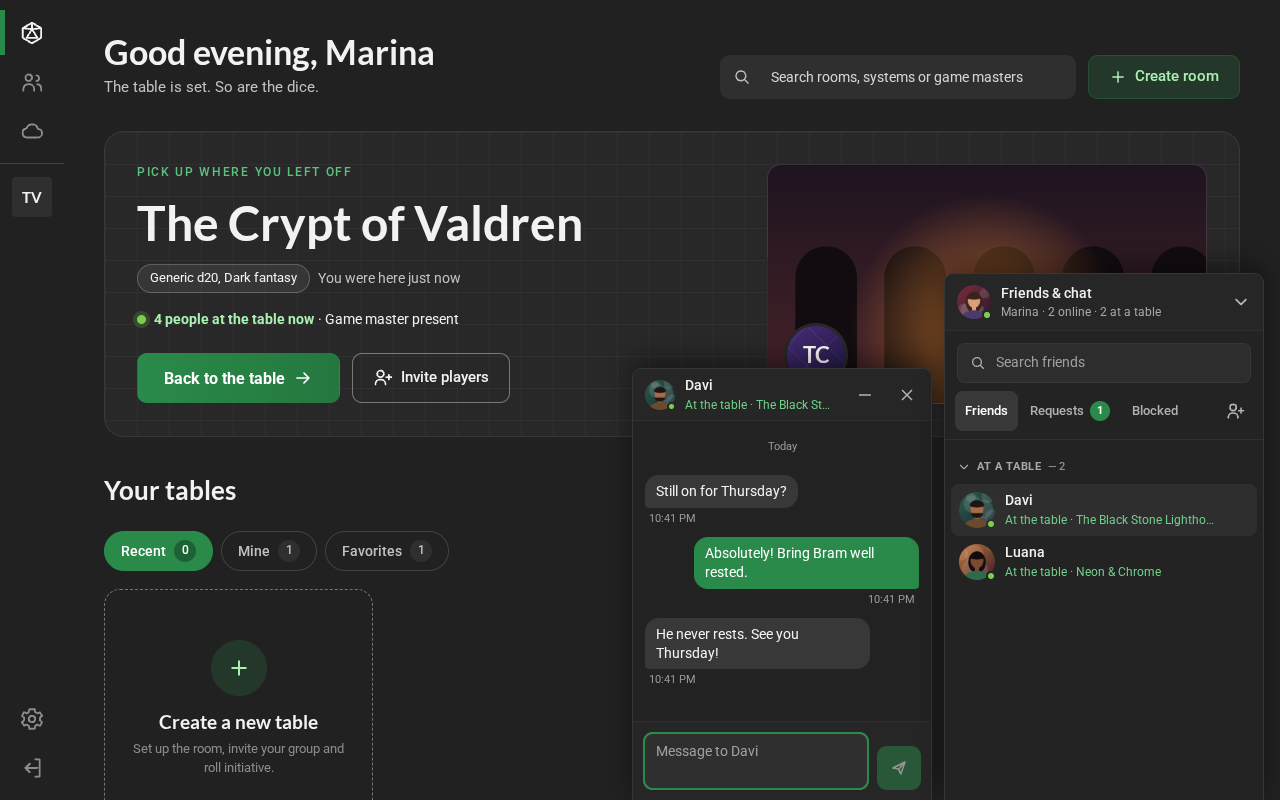
Section titled “Friends & chat”The Friends & chat panel sits in the bottom-right corner on every screen: Home, Explore and inside rooms, on top of everything. Click its header to open and close it. To hide the panel, turn off Show the Friends & chat panel in Settings → Chat.
-
The header shows your picture and how many friends are online. With the panel closed, it also shows how many messages you haven’t read.
-
Your status: click your picture to choose:
- Online: the usual. After about 10 minutes without using RPG Desk, you show as Away;
- Busy: friends see the red dot. Messages arrive and stay unread, but with no sound, no notice and without opening the chat. Good for when you are running a game;
- Offline: friends see you as disconnected. You still see your friends and get their messages. Inside a room, the people in it still see you.
Your status is saved in your account and stays until you change it, on any computer.
-
Search friends filters the list by name. When nobody has that name, Look for it on RPG Desk takes the name to Requests.
-
Friends come in groups that open and close:
- At a table: in a room. A public room shows its name; a private or password-protected room shows just At a table;
- Online: connected. Away (with the orange dot) means they haven’t used RPG Desk for about 10 minutes; Busy (with the red dot) means they chose that status;
- Offline: disconnected, with when they were last seen;
- Other conversations: people who aren’t your friends and exchanged messages with you, the most recent conversation first (see Chatting with people who aren’t your friends);
- Hidden: the friends you hid from the list, folded away at the end.
-
A friend’s menu (the ⋯, a right-click or a long press): Chat, View profile, Invite to this table, Hide from the list (or Show in the list), Unfriend and Block.
Friend requests
Section titled “Friend requests”In the Requests tab (or with the add button next to the tabs):
- Add friend: type the person’s user name and press Send (or Enter). Similar names show up as you type.
- Sent: requests waiting for an answer, with Cancel.
- Received: people who want to be your friend, with the message that came along. Accept with ✓ or decline with ✕. The tab shows how many requests arrived.
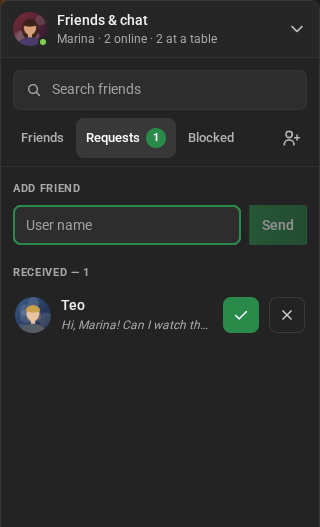
The Blocked tab lists the people you blocked, with Unblock. People you block can’t send you messages, requests or table invites.
Conversations
Section titled “Conversations”Click a friend to open the chat in a window at the bottom, next to the panel. Up to three windows fit side by side; opening one more closes the oldest.
- Enter sends; Shift+Enter starts a new line.
- While your friend writes, typing… shows up.
- — minimizes the window and ✕ closes it. Minimized, it shows how many messages arrived.
- When someone without an open window sends a message, the chat shows up at the bottom, minimized and highlighted, with the usual sound and notice.
- Messages are kept and arrive even when the person is away. A chat becomes read when you open it.
Chatting with people who aren’t your friends
Section titled “Chatting with people who aren’t your friends”You can also chat with people who aren’t your friends yet, like the GM of a table you want to join:
- Talk to the GM opens a chat with the owner of the room. It is in the room overview, in Explore, and, inside the room, in the room menu and at the top of the Participants tab.
- Chat, in someone’s menu in Participants (a right-click on the name) or in their profile, opens a chat with them.
- The window says you’re not friends yet, with Add friend and Block. People who aren’t your friends don’t see whether you are online or which room you are in.
- The chat goes to Other conversations, in the panel. Its menu has Remove from list: it goes away until a new message arrives.
- To get messages from friends only, turn off Get messages from people who aren’t your friends in Settings → Account and security. People you wrote to can still reply.
Inviting friends to a table
Section titled “Inviting friends to a table”Inside a room, Invite friends (at the top of the Participants tab, or in the room menu, from the room’s name) lists your friends: tick who you want and click Invite. The invite arrives in the chat as a card with Join. For a password-protected room, whoever you invite needs the password to get in.
New message notices (sound, system notice, flashing title) are in Settings → Notifications.
On a phone
Section titled “On a phone”The Friends tab in the bottom bar opens the panel full screen; inside a room, the friends button is at the top. A chat opens in place of the list, with a back button. See On your phone.