Create your room
Creating a room takes a minute. Then you invite the players and prepare the adventure.
Create
Section titled “Create”- In Rooms, click + New room (or, on Home, Create a room).
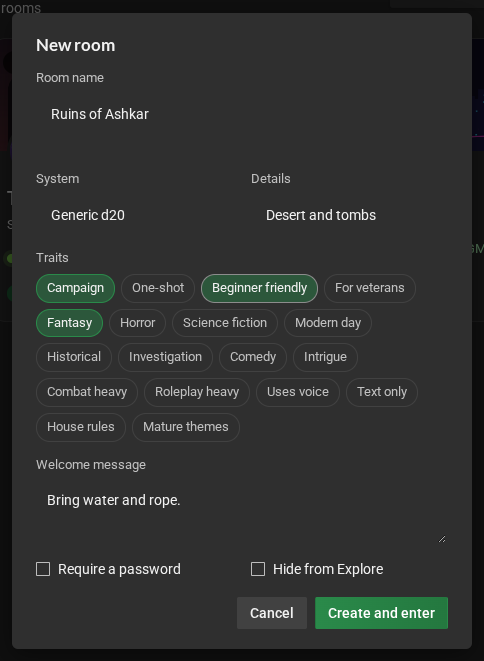
- Fill in the dialog:
- Room name: at least 5 letters;
- System and Details: the game and the edition or setting (“Generic d20”, “Dark fantasy”);
- Traits: click the ones that fit the room (up to 12). They help the search in Explore;
- Welcome message: shows up in the chat for whoever joins. It accepts
formatting, such as
# headingand**bold**; - Require a password, with the Password, if the room is invitation-only;
- Hide from Explore, if it should not appear in the lists.
- Click Create and enter. You enter the room as its game master.
You can change all of this later, in Room settings (see Room settings), which also has the cover, the status message and the Looking for players badge.
Invite the players
Section titled “Invite the players”- In Rooms → Mine, right-click the room’s card and choose Copy room link.
- Send the link to the players. Whoever opens it goes straight into the room (with a password, they will need it too).
- When each one arrives, right-click their name, in Participants, and choose Make player. Whoever joins for the first time comes in as a spectator.
Prepare the first session
Section titled “Prepare the first session”- The sheet: install the sheet plugin for your system in Room settings → Plugins → Install plugin…. See Room plugins and tables. If nobody has made a sheet for your system yet, you can create one, by hand or with help from an AI.
- The players’ sheets: right-click the player, in Participants, and choose Create a sheet for…. See Players’ sheets.
- The map: in the library, New item → New scene, and choose the map image. See Building the scene.
- Combat: enable the Combat tracker in Room settings → Plugins. See Combat tracker.