
Your first sheet
In this tutorial you make a simple sheet, for the game “Quick Adventure”: name, level, two attributes with a computed modifier, a roll button for each and a gear list. All you need is a text editor (Notepad will do; VS Code is better) and the browser.
1. The skeleton
Section titled “1. The skeleton”Create a file called my-sheet.html with this:
<!doctype html><html lang="en"><head> <meta charset="utf-8"> <script type="application/rpgdesk+json" id="rpgdesk-manifest"> { "rpgdesk": 1, "id": "com.yourname.adventure", "name": "Quick Adventure", "version": "1.0.0", "author": "Your name", "sdk": 1, "sheets": [{ "type": "com.yourname.adventure.sheet", "title": "Hero" }] } </script> <script src="https://docs.rpgdesk.com/_sdk/1/rpgdesk.js"></script> <link rel="stylesheet" href="https://docs.rpgdesk.com/_sdk/1/rpgdesk.css"></head><body> <h1>Hero</h1></body></html>Three parts:
- The manifest, the
<script type="application/rpgdesk+json">: tells RPG Desk what the file is. Theididentifies your plugin (use a “reversed domain”, with your name); the sheet’stypestarts with theidand a period; theversiongoes up with each change. It must be valid JSON: double quotes and no comma after the last item. Every field is in The manifest. - The two rpgdesk.js lines: the script, which connects the page to RPG Desk, and
rpgdesk.css, which gives it RPG Desk’s look (it is optional). - The body: the sheet itself.
2. The fields
Section titled “2. The fields”Replace the <body> with this:
<body>  <h1>Hero</h1>  <div class="rd-row">    <label class="rd-grow">Name <input data-field="name"></label>    <label>Level <input type="number" data-field="level" min="1"></label>  </div>
  <h2>Attributes</h2>  <div class="rd-row">    <label>Strength <input type="number" data-field="strength"></label>  </div>  <div class="rd-row">    <label>Dexterity <input type="number" data-field="dexterity"></label>  </div></body>
The data-field attribute connects the field to the sheet’s document: what you type there is
kept in the room under the field’s name (name, level, strength). A type="number" saves a
number. Field names use unaccented letters, numbers and _.
rd-row and rd-grow are rpgdesk.css classes: a row that wraps when it runs out of space, and a
field that takes up the space left.
3. Test it in the browser
Section titled “3. Test it in the browser”Save it and open the file in the browser (double-click it). Outside RPG Desk, rpgdesk.js enters test mode: the fields work, the data is kept in the browser, and a band in the corner shows test mode.
On the band:
- Role switches between GM, Sheet owner and Another player. As another player, the fields are locked: only the owner and the game masters write on the sheet;
- Log shows the rolls, the messages and the errors;
- Clear data erases what you wrote.
4. Roll
Section titled “4. Roll”Add a button after each attribute:
<button data-roll="1d20 + {strength}" data-label="{name}'s Strength">Roll Strength</button>data-roll is the roll, and {strength} becomes the number in the strength field. data-label
is the roll’s name in the chat; in it, {name} becomes the text in the name field. In test mode,
the roll shows up in the Log; in the room, in the chat, for everyone.
5. A computed field
Section titled “5. A computed field”In many games, an attribute gives a modifier: (attribute − 10) ÷ 2, rounded down. Show the modifier
with data-text and roll with it:
<label>Strength <input type="number" data-field="strength"></label><span>Modifier: <b data-text="str_mod"></b></span><button data-roll="1d20 + {str_mod}" data-label="{name}'s Strength">Roll Strength</button>And compute it with three lines of JavaScript, before </body>:
<script> // the modifier: (attribute - 10) / 2, rounded down const modifier = (value) => Math.floor(((Number(value) || 10) - 10) / 2); RPGDesk.connect().then(({ doc }) => { doc.compute('str_mod', ['strength'], modifier); doc.compute('dex_mod', ['dexterity'], modifier); });</script>doc.compute saves str_mod whenever strength changes. It is the right way to keep computed
values: see JavaScript on the sheet.
6. A list
Section titled “6. A list”For the gear, a list where each item has its own fields:
<h2>Gear</h2><ul data-list="gear"> <template> <li class="rd-row"> <input class="rd-grow" data-field="name" placeholder="Item"> <button data-list-remove>×</button> </li> </template></ul><button data-list-add="gear">+ Item</button>The <template> is the mold for each item. Inside it, data-field="name" is the item’s name,
not the character’s. data-list-add adds an empty item; data-list-remove removes its item.
7. Done
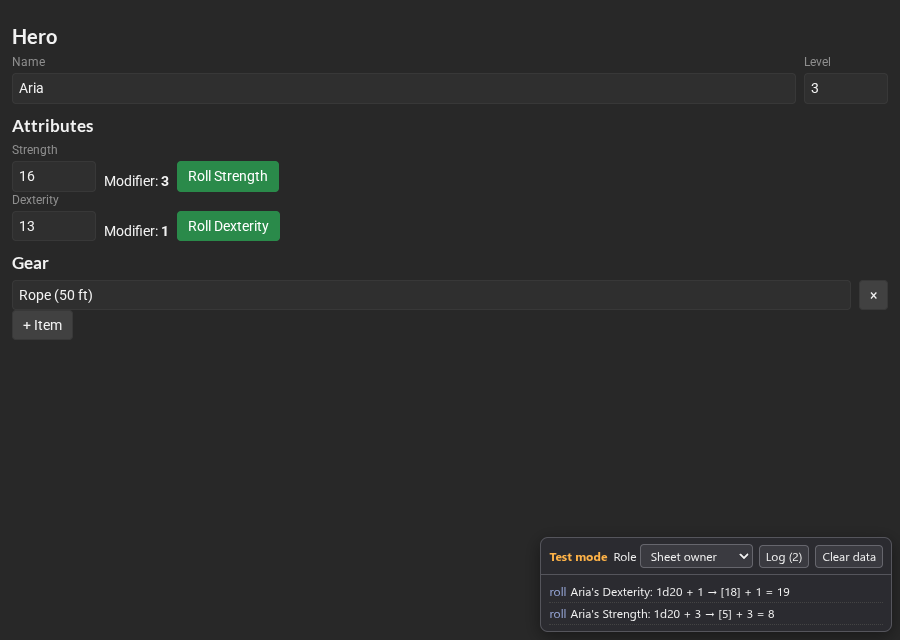
Section titled “7. Done”Putting it all together, the sheet looks like this:
Test mode: the data stays in this browser only. The band in the corner switches the role (GM, sheet owner, another player) and shows the log of rolls.
<!doctype html><html lang="en"><head>  <meta charset="utf-8">  <script type="application/rpgdesk+json" id="rpgdesk-manifest">  {    "rpgdesk": 1,    "id": "com.yourname.adventure",    "name": "Quick Adventure",    "version": "1.0.0",    "author": "Your name",    "sdk": 1,    "sheets": [{ "type": "com.yourname.adventure.sheet", "title": "Hero" }]  }  </script>  <script src="https://docs.rpgdesk.com/_sdk/1/rpgdesk.js"></script>  <link rel="stylesheet" href="https://docs.rpgdesk.com/_sdk/1/rpgdesk.css"></head><body>  <h1>Hero</h1>  <div class="rd-row">    <label class="rd-grow">Name <input data-field="name"></label>    <label>Level <input type="number" data-field="level" min="1"></label>  </div>
  <h2>Attributes</h2>  <div class="rd-row">    <label>Strength <input type="number" data-field="strength"></label>    <span>Modifier: <b data-text="str_mod"></b></span>    <button data-roll="1d20 + {str_mod}" data-label="{name}'s Strength">Roll Strength</button>  </div>  <div class="rd-row">    <label>Dexterity <input type="number" data-field="dexterity"></label>    <span>Modifier: <b data-text="dex_mod"></b></span>    <button data-roll="1d20 + {dex_mod}" data-label="{name}'s Dexterity">Roll Dexterity</button>  </div>
  <h2>Gear</h2>  <ul data-list="gear">    <template>      <li class="rd-row">        <input class="rd-grow" data-field="name" placeholder="Item">        <button data-list-remove>×</button>      </li>    </template>  </ul>  <button data-list-add="gear">+ Item</button>
  <script>    // the modifier: (attribute - 10) / 2, rounded down    const modifier = (value) => Math.floor(((Number(value) || 10) - 10) / 2);    RPGDesk.connect().then(({ doc }) => {      doc.compute('str_mod', ['strength'], modifier);      doc.compute('dex_mod', ['dexterity'], modifier);    });  </script></body></html>
8. Install it in the room
Section titled “8. Install it in the room”- Enter your room as game master and open Room settings → Plugins.
- Install plugin… and choose
my-sheet.html. - RPG Desk checks the file. If a problem shows up, the dialog says how to fix it (see The verifier). With no errors, click Install.
- In the library, New item → New sheet… shows the Hero system, from Quick Adventure.
Changed the sheet? Bump the version in the manifest (1.0.1) and install it again: RPG Desk updates
the plugin, and the sheets already created keep their data. See New versions.